
A little help along the way
Baby Name Matcher
help & support.
Connect with your partner, find your shared favourites and get back to exploring names together.
Updated . Need a hand? Contact support.
How to connect with your partner
Each person should use their own app account on their own device. You can start with a guest account, and both devices need an internet connection to link and save choices.
- Open Your partner. Tap the Settings cog, then the card under Your partner. You can also use Invite your partner from an empty Matches screen.
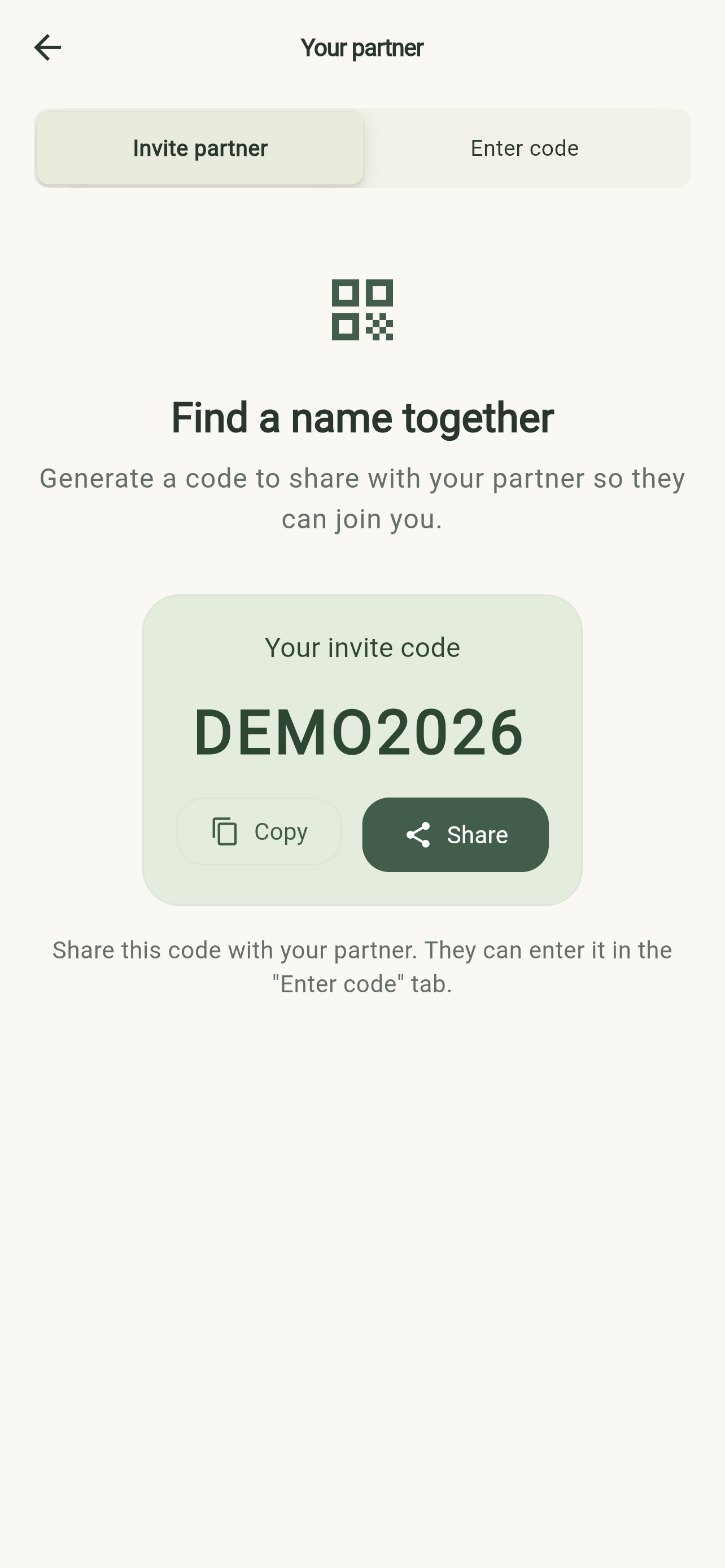
- One person creates an invitation. Choose Invite partner and tap Generate Invite Code. If a code is already displayed, use that invitation.
- Share the eight-character code privately. Tap Copy or Share and send it directly to your partner.
- The other person joins. On their device, open Your partner → Enter code, enter the code you shared and tap Join.
- Check the connection. Settings should show Connected under Your partner. Browse independently and choose Love on names you like; names you both love appear in Matches.
 Open full size
 One person shares their code; the other enters it. DEMO2026 is an example shown for this guide, not a code to use in the app.
 Open full size
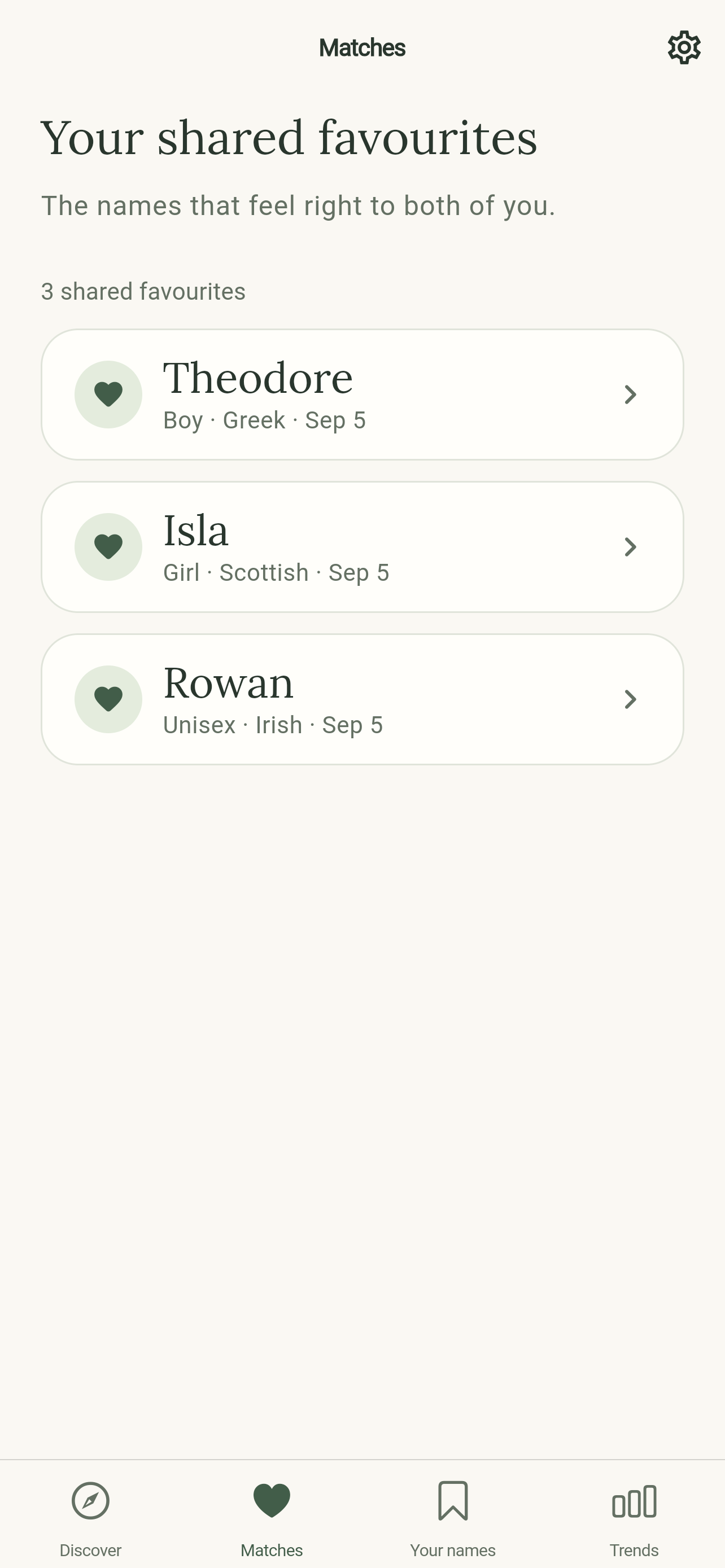
 Matches shows names you both chose Love for. You can be connected successfully before you have any shared favourites.
Once you’re connected, our guide to choosing a baby name together can help you compare your favourites and make a shortlist.
Having trouble with an invite code?
We both created an invite code
Choose one person’s code. The other person opens Enter code and joins using that code, even if they already created an invitation themselves. Creating two invitations does not connect you until one person joins the other.
The code is invalid, expired or won’t go through
Copy the eight-character code from your partner’s Invite partner screen. Enter just the code, without the surrounding share message. Check that it is your partner’s code, rather than your own or the example on this page.
Check your connection and try again. If the app says there have been too many attempts, wait for the time shown before retrying. If the code is still rejected, contact support with the error message; keep the actual code private.
The app says we’re already linked, or the invitation is full
A connection is for two people. Check Settings → Your partner on both devices first: if both show Connected, open Matches. If the connection is not the one you expected, contact support before resetting anything.
My invitation is still waiting to be accepted
Invite ready to share means an invitation exists. Your partner still needs to enter that code on their own device and tap Join. After they join, reopen Settings to check the status.
Why aren’t our matches showing?
- Check that you’re connected. Look for Connected under Your partner in Settings on both devices. An invitation on its own is not a completed connection.
- Check both choices. Both people must choose Love on the same name entry. A Later or Pass choice does not create a match. Check the spelling and, for a custom name, that you are choosing the same shared entry.
- Refresh Matches. Check your internet connection, open Matches and pull down on the list to refresh. Use Try again if an error is shown.
- Ask us to check if it still looks wrong. Send the name and the error or behaviour you see, together with your support ID. You do not need to delete your account to troubleshoot a missing match.
A match can appear in the app even if you do not receive a notification. Alerts and your shared favourites are separate things.
How to turn on match alerts
Open Settings → Notifications in Baby Name Matcher and follow the notification card’s instructions. Your device’s notification settings control Lock Screen alerts, banners and sounds; Focus settings can also affect when an alert appears.
If you expected an alert, check Matches first, then review the app’s notification permission and your device settings. You can keep using the app with notifications turned off.
Account deletion and pricing
Deleting your account
Open Settings → Delete account and confirm. This also works for guest accounts. Your partner keeps their own account and choices; shared matches are removed. You can also request account deletion without the app.
Completely free, for both of you
Baby Name Matcher is free to download and use. All features are included, with no ads, subscriptions or in-app purchases.
Still need help?
Email [email protected], or open Settings → Get support in the app.
To help us investigate, include:
- Your app version and whether you use an iPhone or iPad.
- Your support ID from Settings → Copy support ID.
- The steps you tried and the exact error message, if one appears.
Please do not send passwords or invite codes. If you include a screenshot, hide the invite code first.
For questions about name rankings and missing years, see our baby-name data sources and popularity explanation.